The iPhone 17’s off screen display (officially known as “24/7 display”) is intuitive to operate, essentially using LTPO screen technology to reduce the refresh rate to 1Hz to achieve low-power constant brightness, and still display key information when the screen is locked.
The specific steps are as follows:
Enter the settings interface: Click on the gear shaped “Settings” icon on the desktop, which is the entrance to all system configurations.
Find Display Settings: Scroll down in the menu and select the “Display and Brightness” option, which gathers the core screen related configurations.
Turn on function switch: Find the “24/7 display” or “Off screen display” switch (name may be fine tuned due to system version), tap to switch to the green on state.
After activation, the screen will not completely turn black when locked, but will present time, notification overview, widgets, and wallpaper outlines in dim mode, allowing for quick access to information without the need to light up the screen.
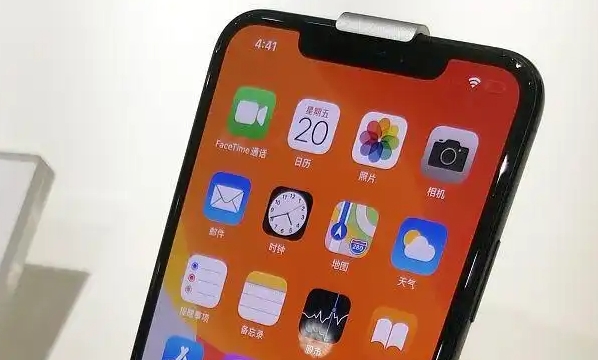
The off screen display of iPhone 17 is not an independent setting module, but is deeply linked with the lock screen interface. Personalization needs to be achieved by editing the lock screen, and the core can be adjusted in three dimensions:
Wallpaper and visual style: Long press the lock screen interface to enter editing mode, click the “+” sign to create a new lock screen or edit an existing style. The selected wallpapers such as photos, weather, astronomy, etc. will be presented in low brightness when the screen is turned off, and a pure black wallpaper can further reduce power consumption.
Time and font design: In the lock screen editing interface, the font style (such as digital, analog, mixed style) and color of the time can be directly adjusted, and these settings will be synchronously mapped to the off screen display to meet aesthetic needs.
Practical widget addition: In the area below the time, small widgets such as weather, calendar, battery, stock market, etc. can be added. When the screen is turned off, the display will remain simplified, making the core information clear at a glance. It is recommended to prioritize retaining 1-2 components that are frequently used to avoid cluttered interfaces.
Please note that to protect privacy, the detailed content of the notification will be automatically hidden and only the icon or overview will be displayed. Simply tap the screen to expand the complete information.
