For users who rely on iPhone 17 to share their network with other devices, suddenly discovering the disappearance of the “personal hotspot” option is undoubtedly anxiety inducing. This feature allows converting mobile data into Wi Fi signals for devices such as tablets and computers to connect to the internet. If a hotspot disappears, it may be caused by system settings, operator restrictions, or hardware failures. The following provides a systematic solution to help you quickly restore functionality.
Basic investigation
Personal hotspots rely on cellular data for operation. If the basic conditions are not met, the functions will inevitably not be displayed or enabled properly.
1. Check cellular data and signal
Go to “Settings”>”Cellular Network” and ensure that “Cellular Data” is turned on (the switch is green). At the same time, observe the signal bar at the top of the screen and ensure a stable 4G/5G signal – when the signal is weak or there is no service, the hotspot function may automatically hide.
2. Verify operator and package permissions
This is the most easily overlooked key factor: some operators will restrict the hotspot features within the package (such as not included in the basic package, requiring additional activation, or automatically disabling them after exceeding the data limit).
It is recommended to directly call the customer service hotline of the operator (such as China Mobile 10086, China Unicom 10010, China Telecom 10000) to confirm whether your package supports personal hotspot and whether the function has been activated in the background.
3. View hidden hotspot entrances
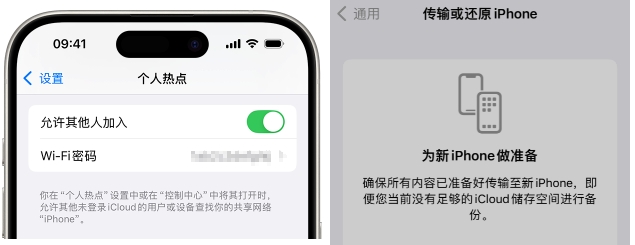
In some cases, the “Personal Hotspot” option is nested within the “Cellular Network” menu rather than directly displayed on the settings homepage. You can go to “Settings”>”Cellular Network”, swipe down to see if there is a “Personal Hotspot” sub option, and if so, simply turn it on.
